
HOW TO SUBMIT A NEW LISTING
(IF CONTRACT IS SIGNED DURING APPOINTMENT)
1. Prior to creating your loop for this property, scan all documents you completed at the listing appointment to yourself in a PDF from the copier. Save this PDF to your computer once received so you may upload to your loop.
2. Select “Create a Loop” and begin typing in your subject address. Dotloop will begin auto filling the remainder of the address for you. When finished select “Create Loop”
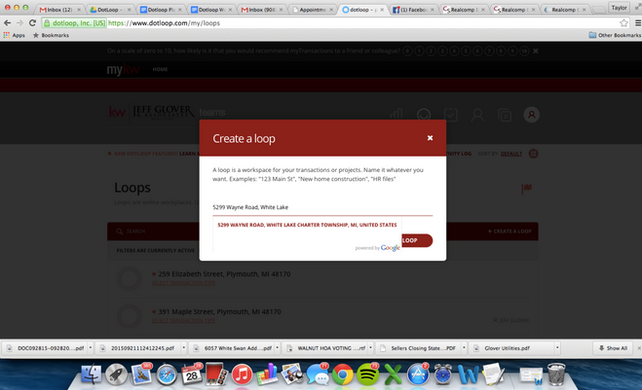
3. Select “Add Document” and then “Upload” and “From Computer” then please locate the document you scanned to yourself.

4. If you hand wrote some of the paperwork, and not others, you may go to “Upload” and “Templates” then “JGA-Listing Packet” and select which documents you are missing (this could include the task form, sign order form, etc.)

5. Once all documents have been uploaded and completed. You will select all of your documents in the loop (by selecting the boxes next to your documents) and press the “Submit for Review” button in the right hand corner. Please make sure ALL documents are fully completed and executed prior to submitting. When pressing submit for your review, you will be prompted to select which category you are submitting this loop for. In this particular case, you will select “Listing” at this same time, you may write any messages to the admin as well (ex: “Please rush!” or “Do not list until 1/1/15”)
